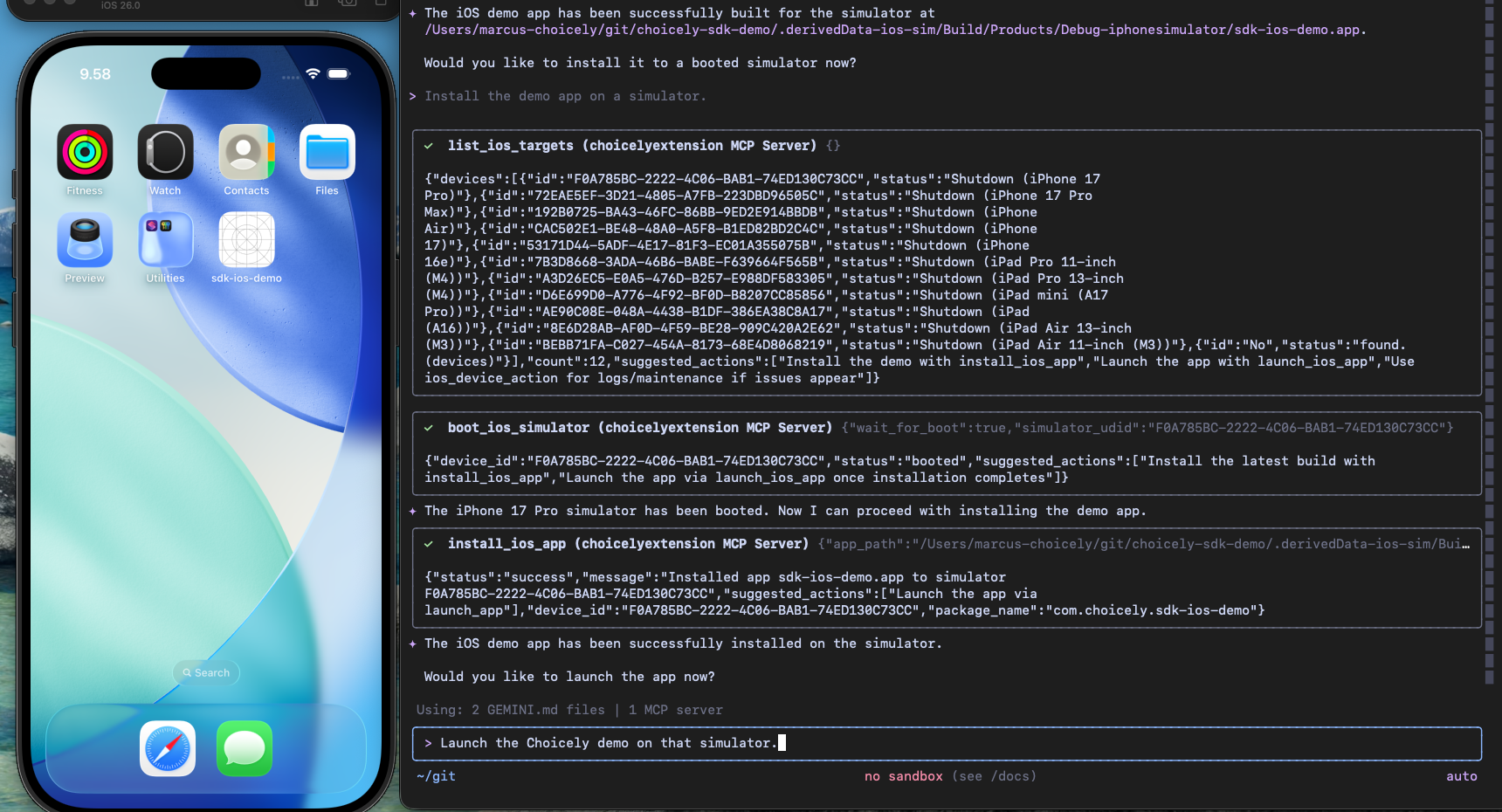
Choicely Gemini CLI Extension – Conversation Playbook
This guide is for anyone who only wants to talk to Gemini and still get the Choicely demo up and running. Every section tells you exactly what to say, what Gemini will do for you, and what to expect back. Follow the prompts and Gemini selects every tool and command on your behalf.Before You Start Talking to Gemini
- Install/update Gemini CLI: Run
npm install -g @google/gemini-cli. - Install the extension: Run
gemini extensions install https://github.com/choicely/choicely-gemini-cli-extension.git.- You will be prompted to enter variables like
CHOICELY_APP_KEY,JAVA_HOME, andANDROID_HOME. - Note: If you leave
CHOICELY_APP_KEYempty (press Enter to skip), the extension will still install and the app will work fine, but it will show the preconfigured demo app instead of your app. You can provide the key later in the chat (e.g., “Configure the app key to be<your-key>”). - Note: If you don’t have
JAVA_HOMEorANDROID_HOMEset, don’t worry! The extension can automatically download the necessary SDKs for you.
- You will be prompted to enter variables like
- Prepare a workspace: The extension uses a folder named
choicely-sdk-demoin your current directory. - Devices and emulators: Gemini lists every connected phone/AVD/simulator and pauses for your confirmation before booting or using one.
Quick Way to Ask
- Say: “Clone the demo and build/install/launch on Android,” or “Do the same on iOS.” Gemini handles the steps and tools automatically.
Workflow 1 – Launch the Android Demo
These five steps take you from nothing to a running Choicely demo on an emulator or real device. Keep the asks simple—“fetch, build, install, launch.” The agent handles targets automatically and only asks you to choose if more than one is available.Step 1 – Clone (and Auto-Configure) the Demo Project
- Say: “Download the Choicely SDK demo into my current folder.”
- Expect: Gemini clones (or refreshes if you’ve allowed overwrite) and returns the repo path. If you haven’t set
CHOICELY_APP_KEY, it will ask you for it or you can provide it now.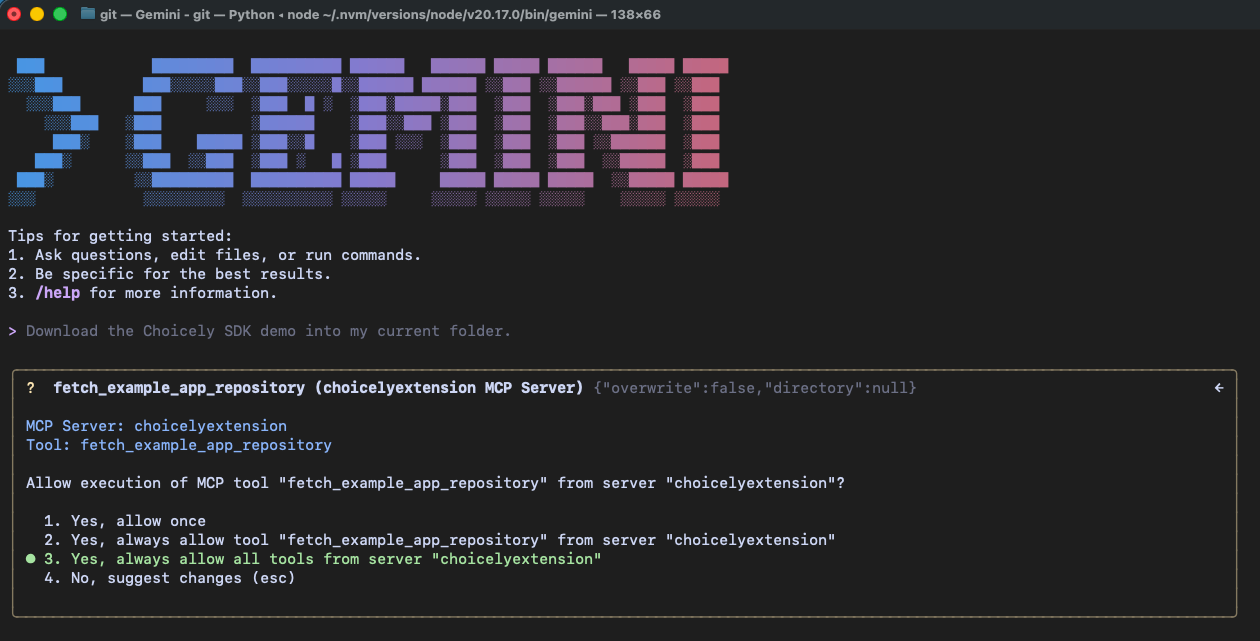
Step 2 – Build the APK
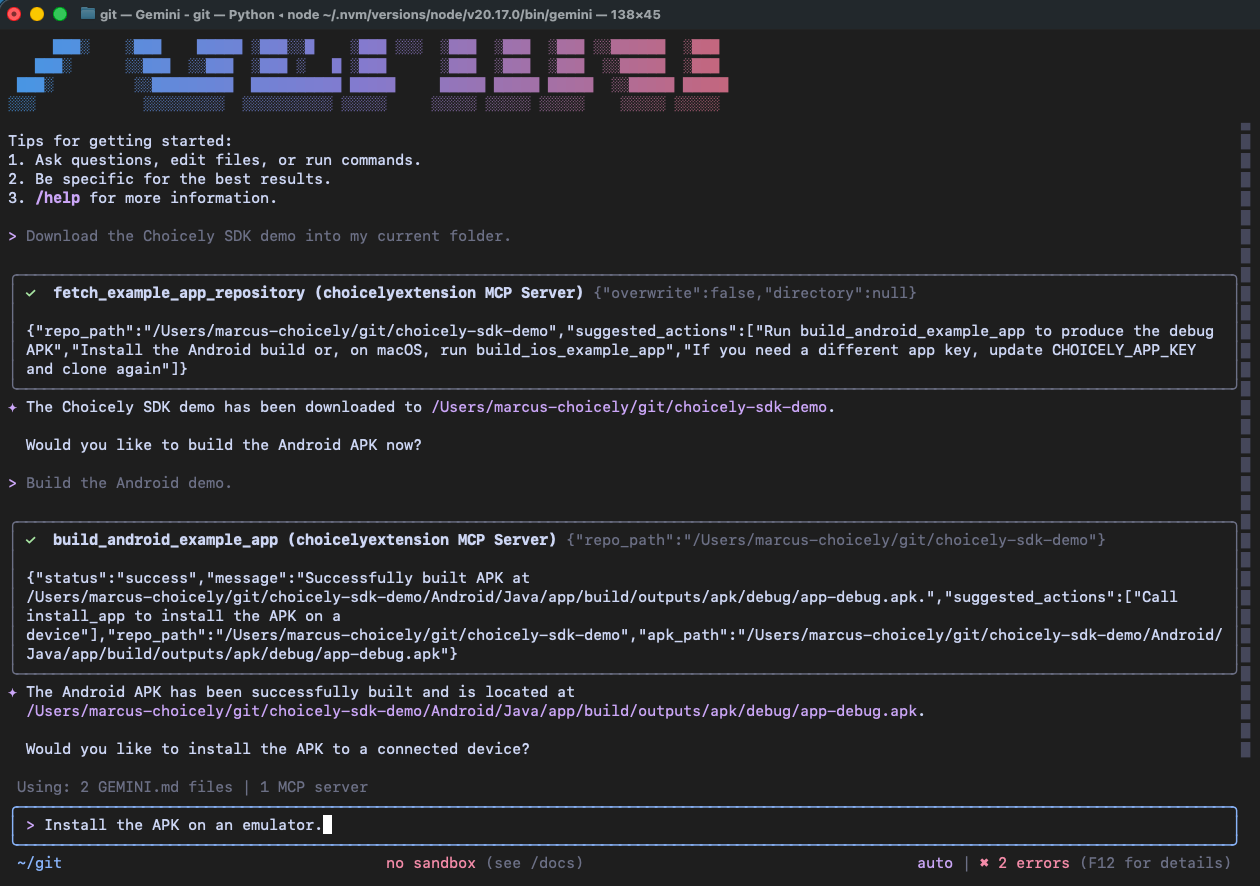
- Say: “Build the Android demo app.”
- Expect: Gemini builds the APK. On failure, it returns the error log.
- If the build fails due to missing Java/Android SDK: Say “Install Android dependencies” to have Gemini fix it automatically.

- If the build fails due to missing Java/Android SDK: Say “Install Android dependencies” to have Gemini fix it automatically.
Step 3 – Install the Build
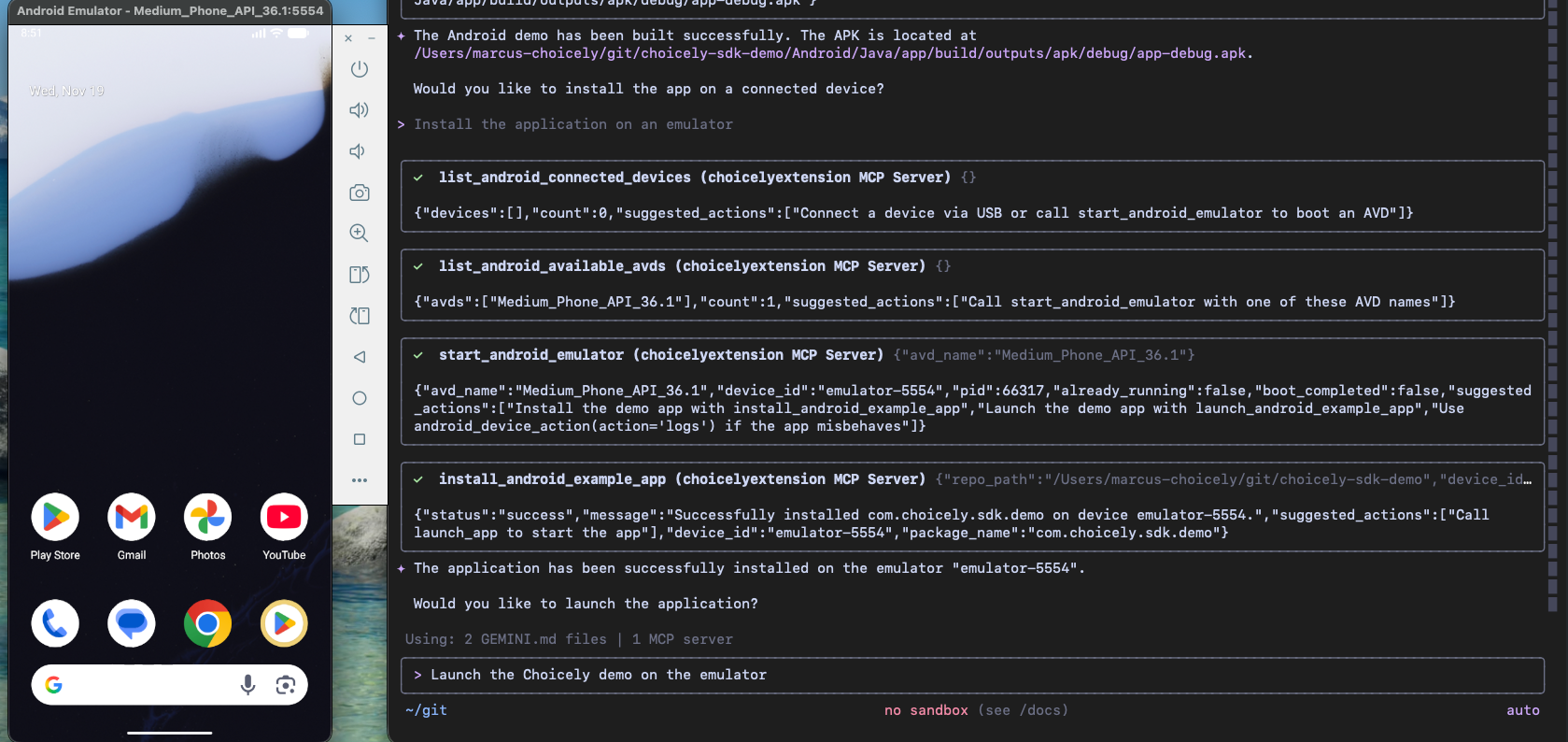
- Say: “Install the application on an emulator.”
- Expect: Gemini lists the available devices/AVDs, asks if it should start the recommended one, then installs once you confirm. Afterward it repeats the package name and device ID.
- Note: If you need a new emulator, say “Install dependencies with emulator support” to download the emulator binaries.
- Note: If you need a new emulator, say “Install dependencies with emulator support” to download the emulator binaries.
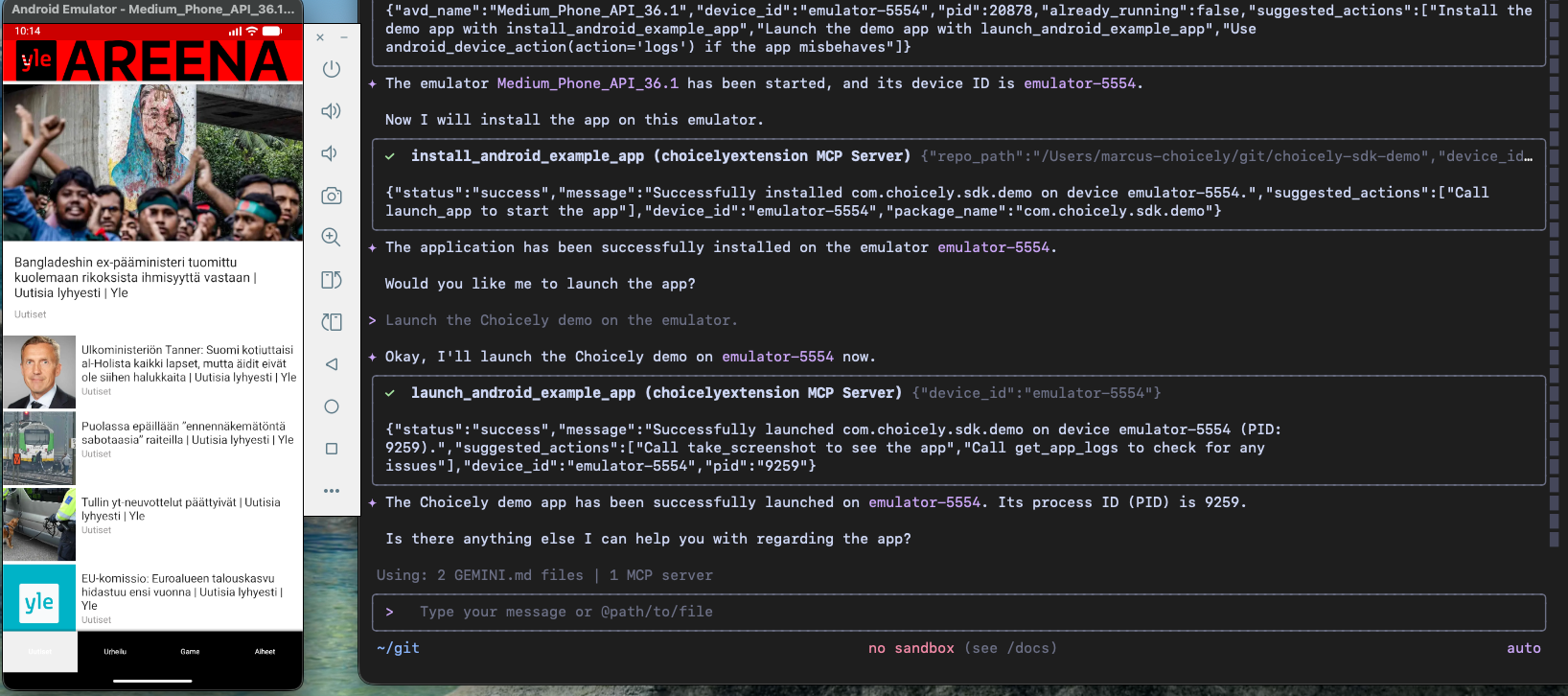
Step 4 – Launch and Validate
- Say: “Launch the Choicely demo on the emulator.”
- Expect: Gemini opens the app and can capture a screenshot or logs if you ask. It can also force-stop or uninstall on request.
Workflow 2 – Launch the iOS Demo (macOS)
Mirror the Android flow on macOS. Ask for the outcome; the agent handles simulator selection/boot automatically and only asks you to choose if more than one simulator is available.Step 1 – Clone (and Auto-Configure) the Demo Project
- Say: “Download the Choicely SDK demo into the current folder.”
- Expect: Gemini clones (or refreshes if you’ve allowed overwrite) and returns the repo path. If you haven’t set
CHOICELY_APP_KEY, it will ask you for it or you can provide it now.
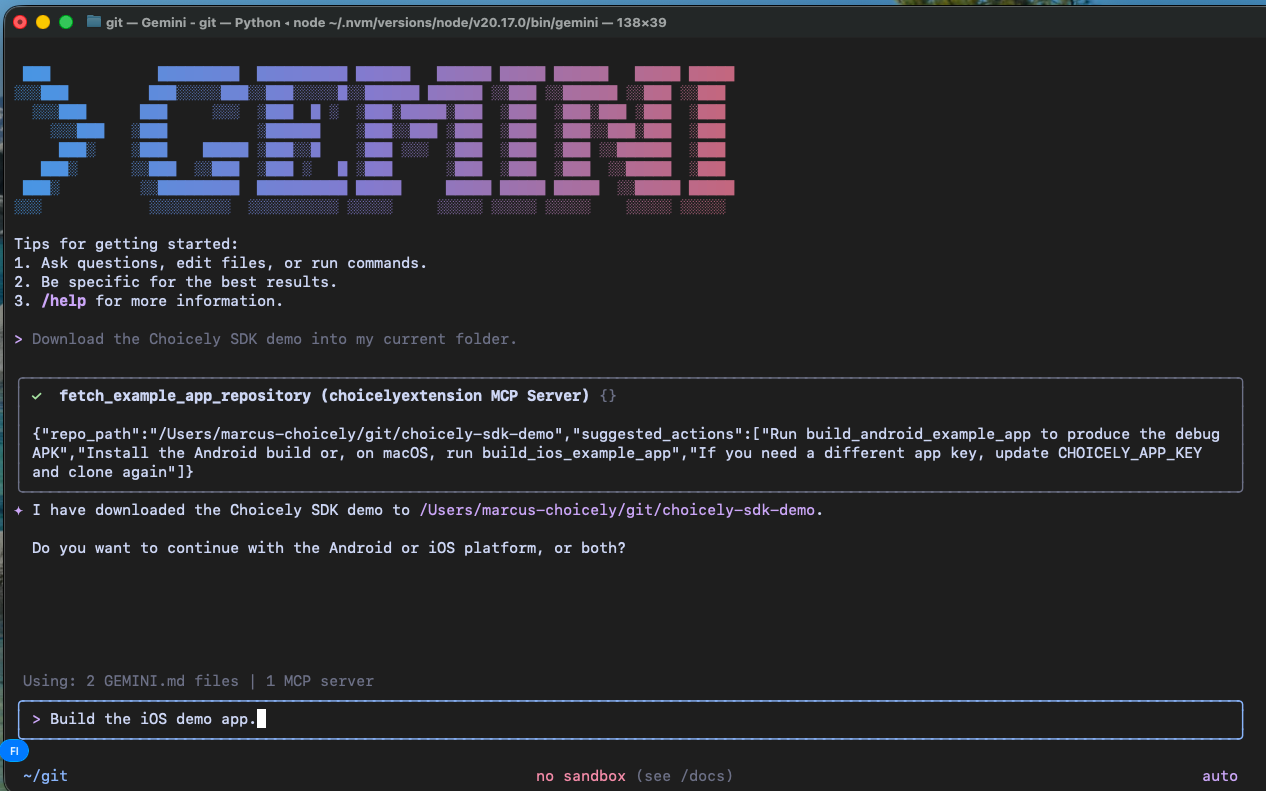
Step 2 – Build the iOS Simulator App
- Say: “Build the iOS demo app.”
- Expect: Gemini runs the Xcode build and reports success or the build error log.
Step 3 – Install the Build
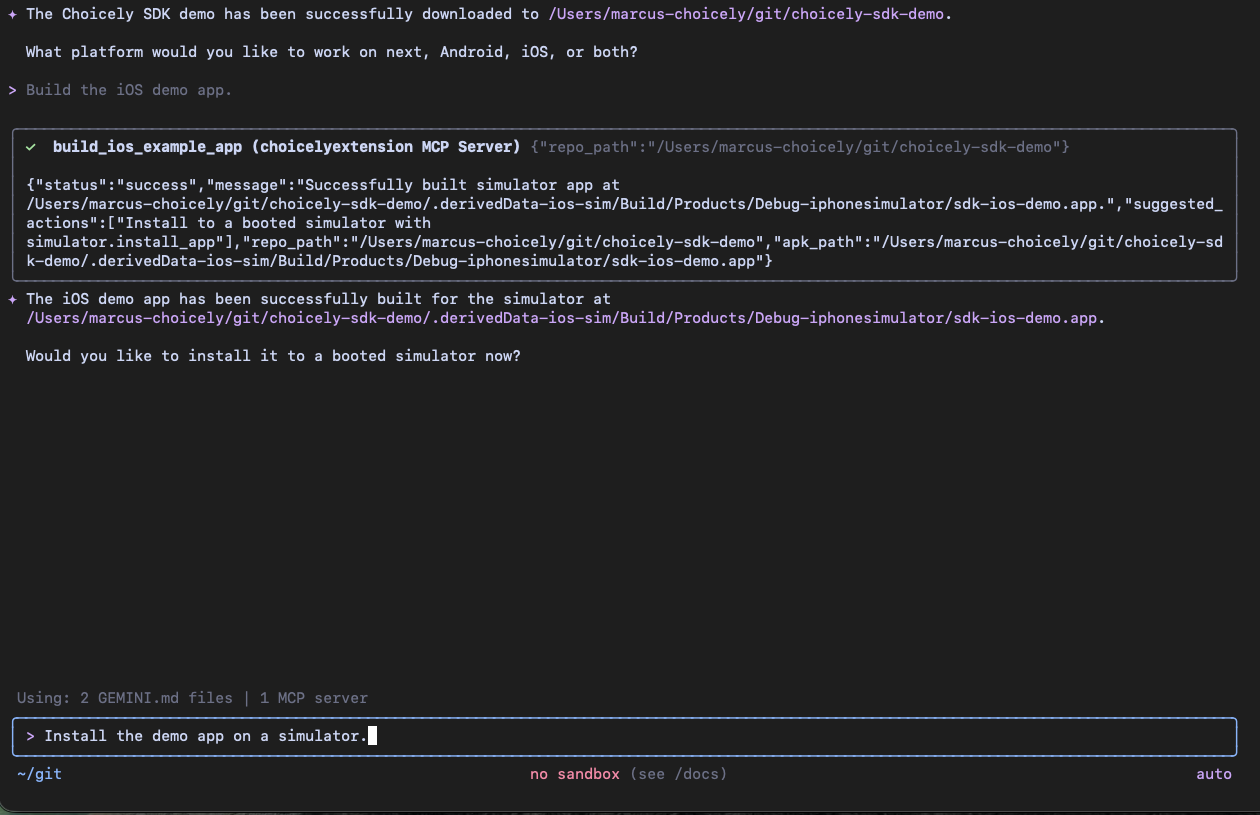
- Say: “Install the demo app on a simulator.”
- Expect: Gemini shows the simulator options, asks before booting one, then installs and reports the simulator ID/bundle after you confirm.
Step 4 – Launch and Validate
- Say: “Launch the Choicely demo on that simulator.”
- Expect: Gemini opens the app and can capture a screenshot or logs if you ask. It can also terminate or uninstall on request.