Prerequisites
Before you begin, make sure you have the following installed:- Node.js >= 20
- Xcode (for iOS development)
- Android Studio (for Android development)
- A Choicely app key from Choicely Studio
Clone the repository
Project structure
App key configuration
The project includes a default demo app key indefault.env that works out of the box — no setup needed to get started.
To connect to your own Choicely app, create a .env file in the project root:
Values in
.env override default.env. You only need to set the variables you want to change.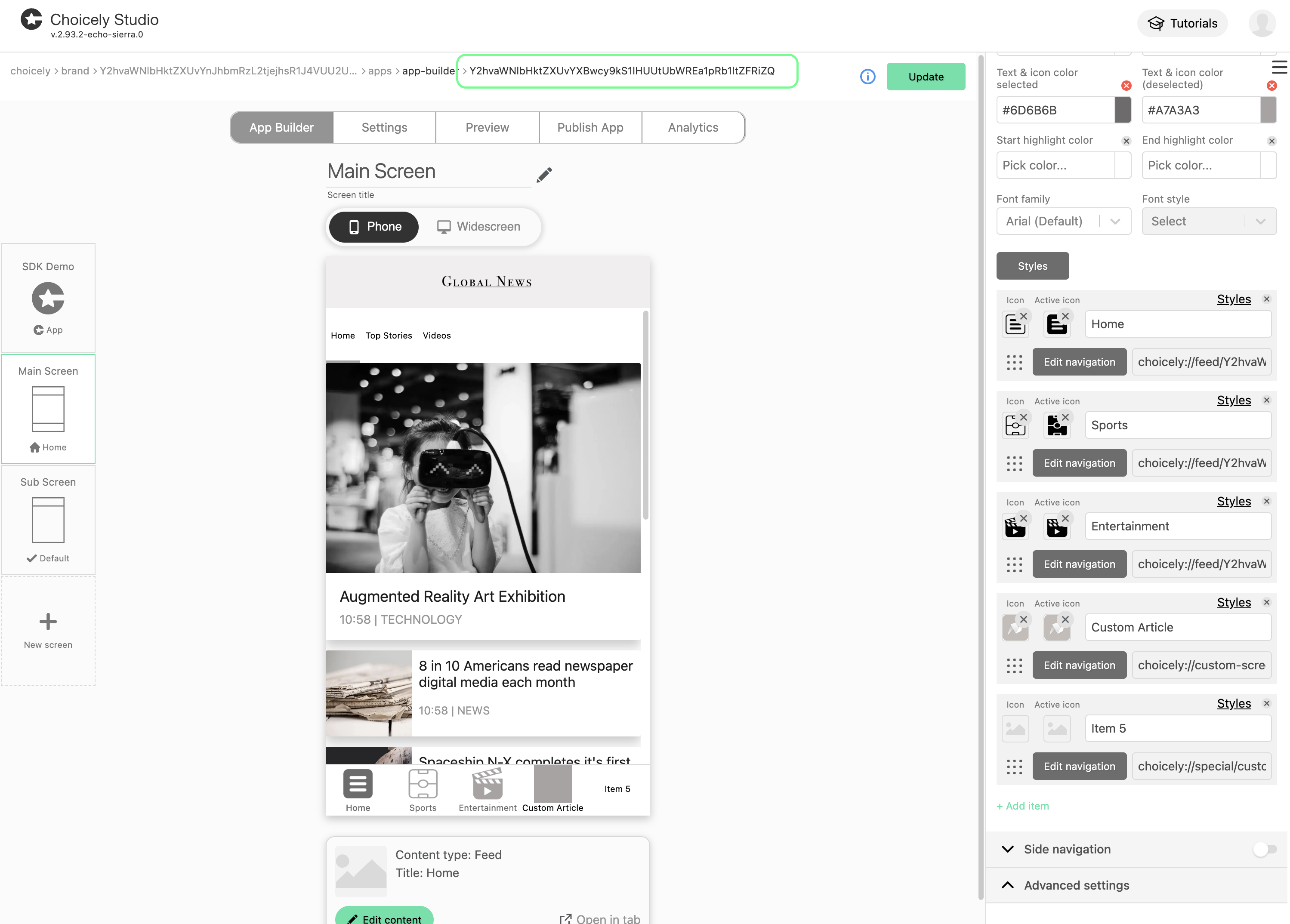
How it works
The React Native integration follows a simple four-step flow:- Create a component — Write a React Native component in
rn/src/components/. - Register it — Add an entry to
componentMappinginrn/src/index.js. - Set the URL in Studio — Point a navigation item to
choicely://special/rn/<name>in Choicely Studio. - SDK routes to the component — When the user taps the item, the native SDK loads your React Native component.
Next steps
Create Components
Write components, register them, and pass props via URL
Run on Device
Build and run on iOS and Android with Metro